Get more done with Chrome

Filters:

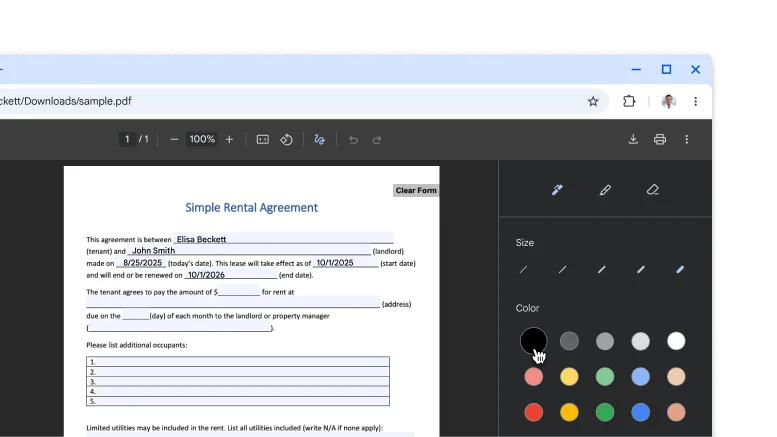
    A PDF open in the Chrome PDF viewer with hand-drawn annotations and signature.

    productivity

    Sign and annotate your PDFs

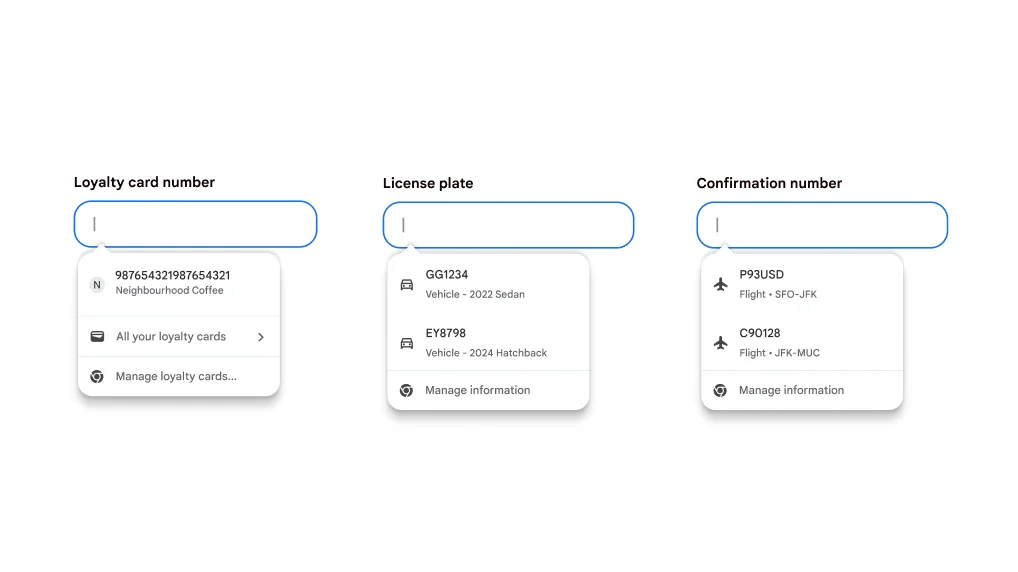
    Autofill user experience for filling in loyalty cards, vehicle information and flight information.

    productivity

    Autofill your loyalty cards, flight details, and vehicle info

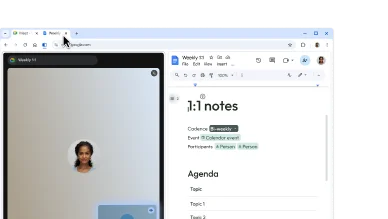
    A user creates a split view by dragging one tab into another. This lets them easily take notes during a Google Meet call.

    AI

    View two pages in one tab

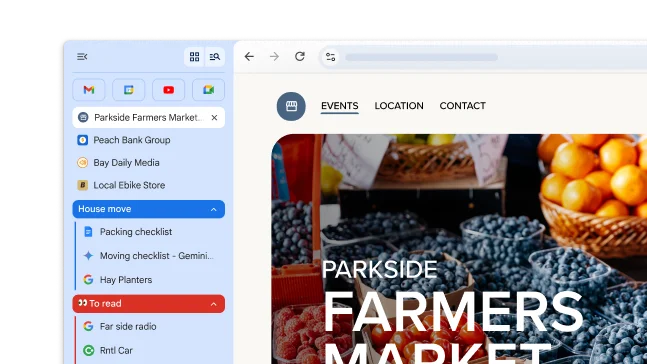
    Tab Groups across iOS, Android, and desktop devices
    Tab Groups across iOS, Android, and desktop devices
    Tab Groups across iOS, Android, and desktop devices

    Personalization

    Get your tab groups on the go

    A PDF featuring a recipe is open in a Chrome browser window. The user has selected text within the PDF.
    A PDF featuring a recipe is open in a Chrome browser window. The user has selected text within the PDF.
    A PDF featuring a recipe is open in a Chrome browser window. The user has selected text within the PDF.

    productivity

    Interact with scanned PDFs

productivity

Sign and annotate your PDFs

Skip downloading and printing when it’s time to sign a PDF. Use the annotation tool to hand-draw your personal signature, complete forms, and highlight lines.

  1. Open a PDF and click Annotations .
  2. Choose your pen or highlighter style and color.
  3. Draw your annotation or signature, and click Save .

Tip: To make it easier to draw on a small line, Zoom the PDF.

productivity

Autofill your loyalty cards, flight details, and vehicle info

Stop digging for details! Chrome now integrates with Google Wallet to quickly and securely autofill more types of information.

  • Loyalty cards: Earn your rewards without the physical card.
  • Vehicle info: Quickly complete forms for insurance quotes, parking bookings, or registering your car online.
  • Flight details: Check in faster with automatic filling of confirmation numbers and dates.

To use these features:

  1. Sign into Chrome.
  2. Go to Chrome Settings > Autofill and passwords > Enhanced Autofill
  3. Turn on ‘Enhanced autofill’.
Autofill user experience for filling in loyalty cards, vehicle information and flight information.

AI

View two pages in one tab

Split view puts two pages side-by-side in the same tab. This makes it easier to compare options, watch a video while taking notes, and more.

To open a split view, drag another tab to the left or right edge of your browser window. Or, right-click a link and select Open Link in Split View.

Personalization

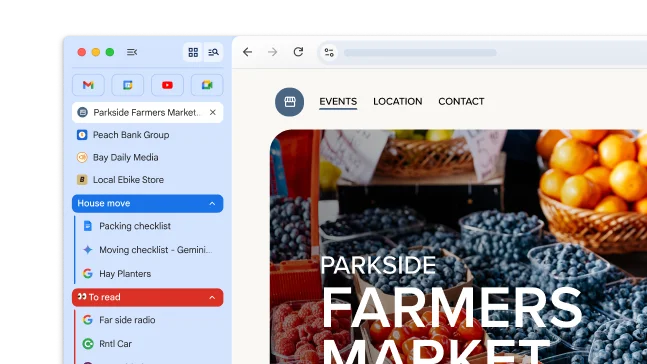
Get your tab groups on the go

When you create a tab group, it’s automatically saved to your Google Account – so you can open those tabs and keep going on any signed-in device.

To start seeing your tab groups across devices:

  1. Sign in and create a tab group. The tab group will automatically save to your account.
  2. To open your group on a different device:
    1. Mobile: Go to your open tabs and click the tab group section .

    2. Desktop: Click the tab group icon in your bookmarks bar (if open) or the Chrome menu.

Tab Groups across iOS, Android, and desktop devices

productivity

Interact with scanned PDFs

Now you can search, select, or copy text from scanned PDFs in Chrome.

All you have to do is open a PDF from Chrome. It will automatically open as an interactive file in Chrome's PDF viewer.

A PDF featuring a recipe is open in a Chrome browser window. The user has selected text within the PDF.